From a book to your first lesson
Turn material you trust into an AI-native learning programme — then learn it with any agent. No coding, no prompts; everything happens in the Studio and learner UI.
Point Nebular at material you already trust — a textbook or two, lecture notes, a syllabus. It reads everything into a single skill graph: the concepts plus the prerequisites between them.
- 1In Studio, open Programmes and pick Import a textbook or syllabus to land on
/programme/new. - 2Give it a name (Introduction to linear algebra) and drag in 1–20 files. Nebular links several books into one graph and wires cross-book prerequisites automatically.
- 3Hit Next. Your files upload and the build kicks off — you can close the tab and come back.
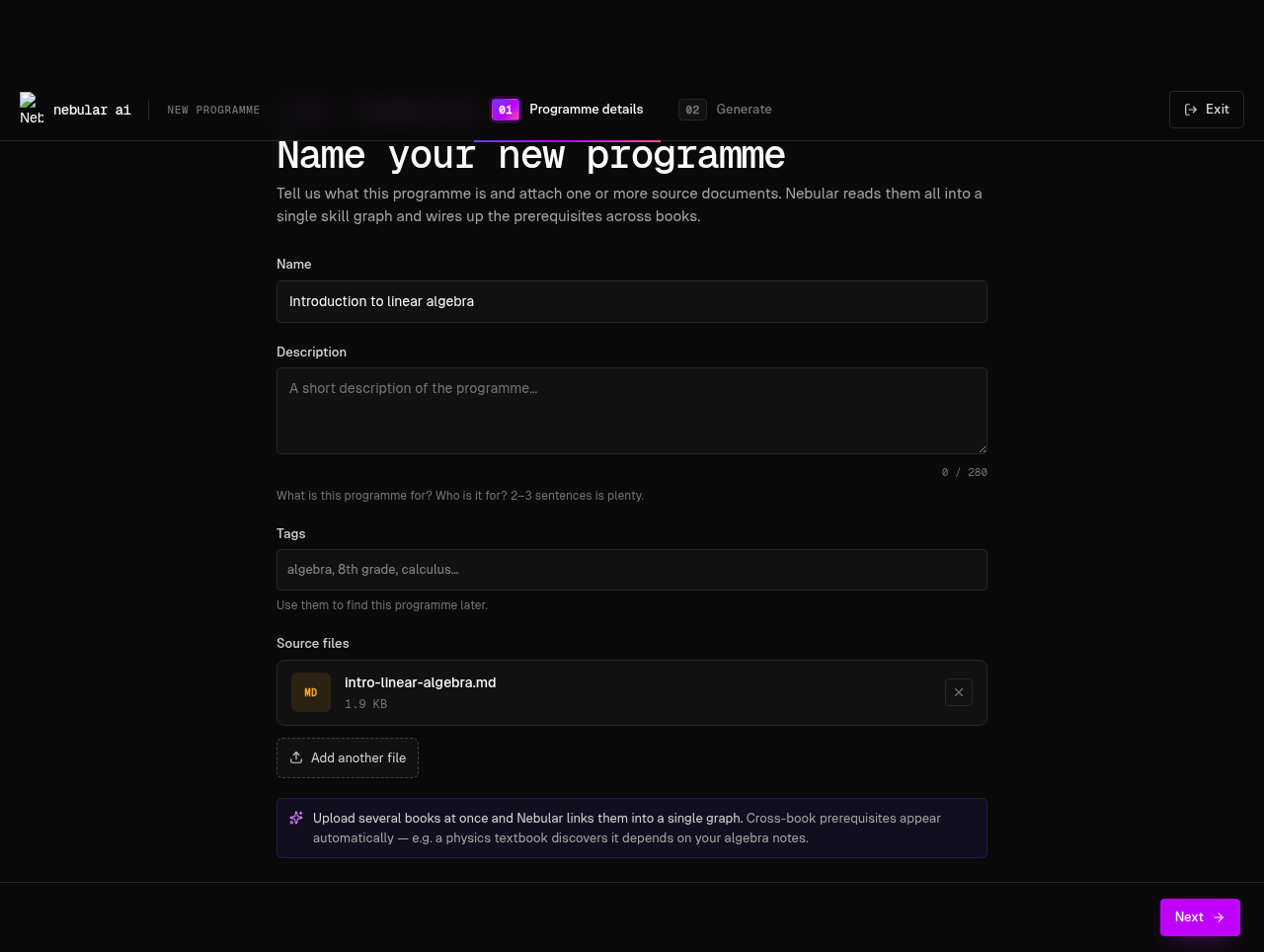
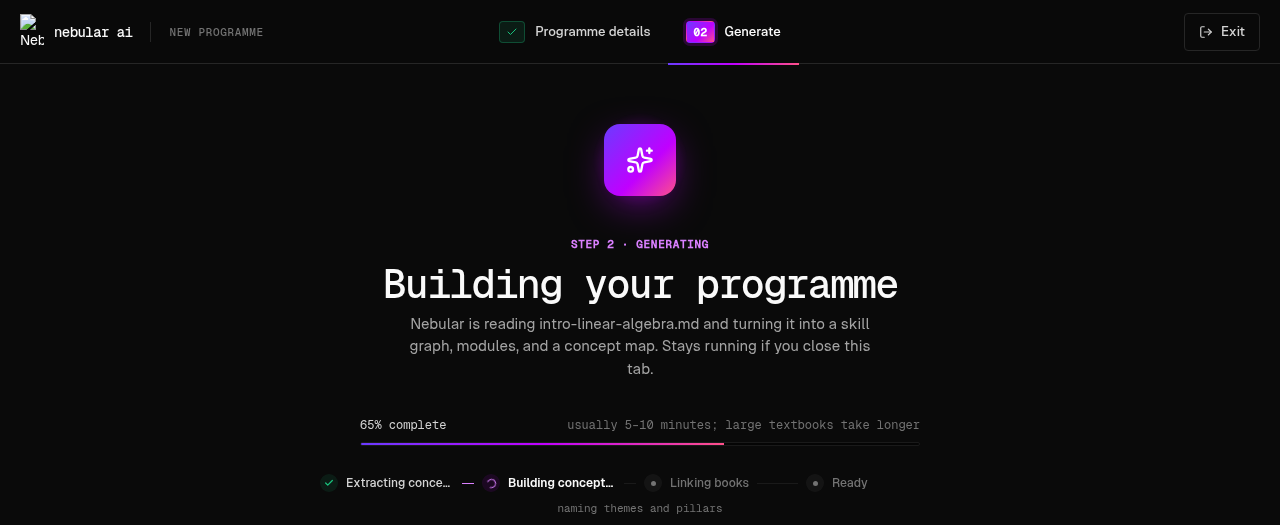
Nebular chunks each source, reads its chapter structure, extracts the teachable skills, and assembles them into a graph, modules, and a concept map — usually in five to ten minutes.
Watch the per-file jobs move through queued → running → indexed. When it finishes, the ready panel shows the headline stats: concepts, modules, and prerequisites discovered.
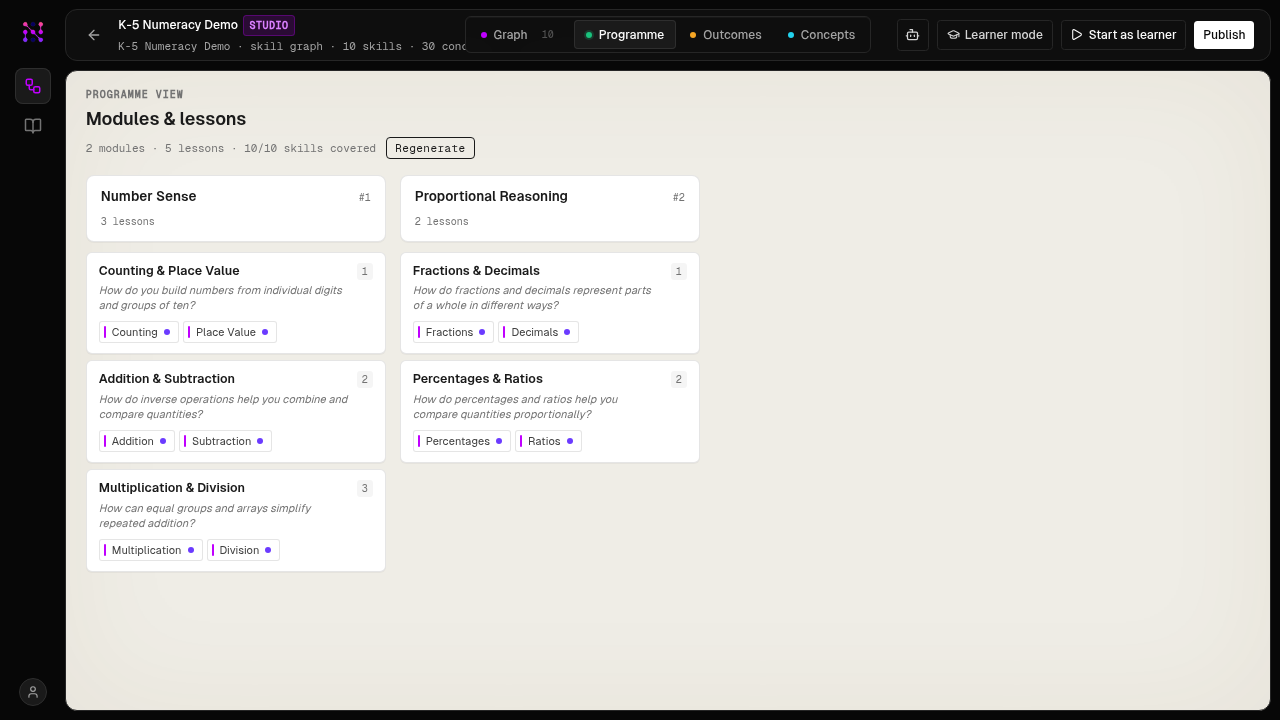
Optional, but worth a minute. Open the graph in the editor and check the Programme tab to sanity-check the structure before you publish.
- 1Click View in Studio to open the editor at
/editor/<id>. - 2Switch to the Programme tab to see the modules and lessons Nebular generated, each tagged with the skills it covers — and the Graph tab to eyeball the prerequisites and entry points.
- 3Rename or prune skills by hand if you like. Nothing here is permanent until you publish.
Publishing snapshots the current graph into a versioned programme that learners can enrol in. Nothing is exposed until you do this.
- 1Hit Publish in the editor’s top bar and give the version a name (it becomes the programme title learners see).
- 2Watch the four stages run in order:
concept map→outcomes→programme→publish. Each can retry on its own if it hiccups. - 3On success you get a version like v1.0 and a shareable learner link.
/learn/<slug>. Keep editing afterwards — your next publish is just v1.1.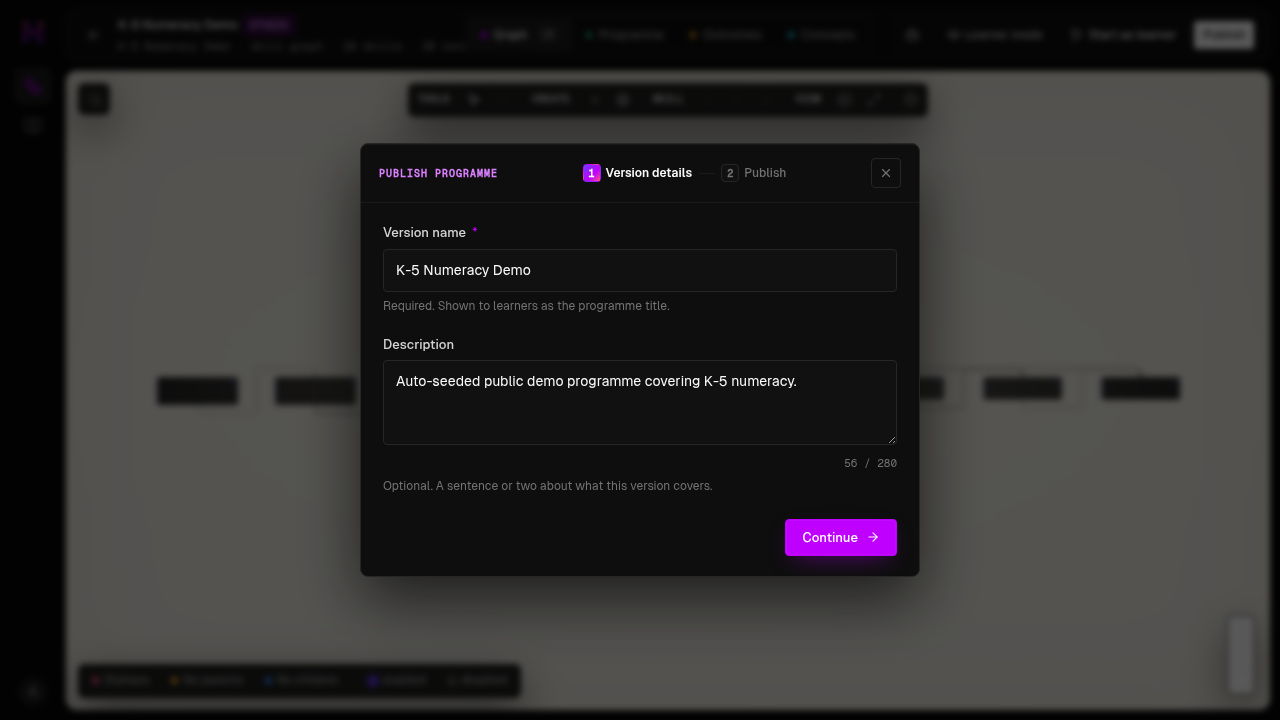
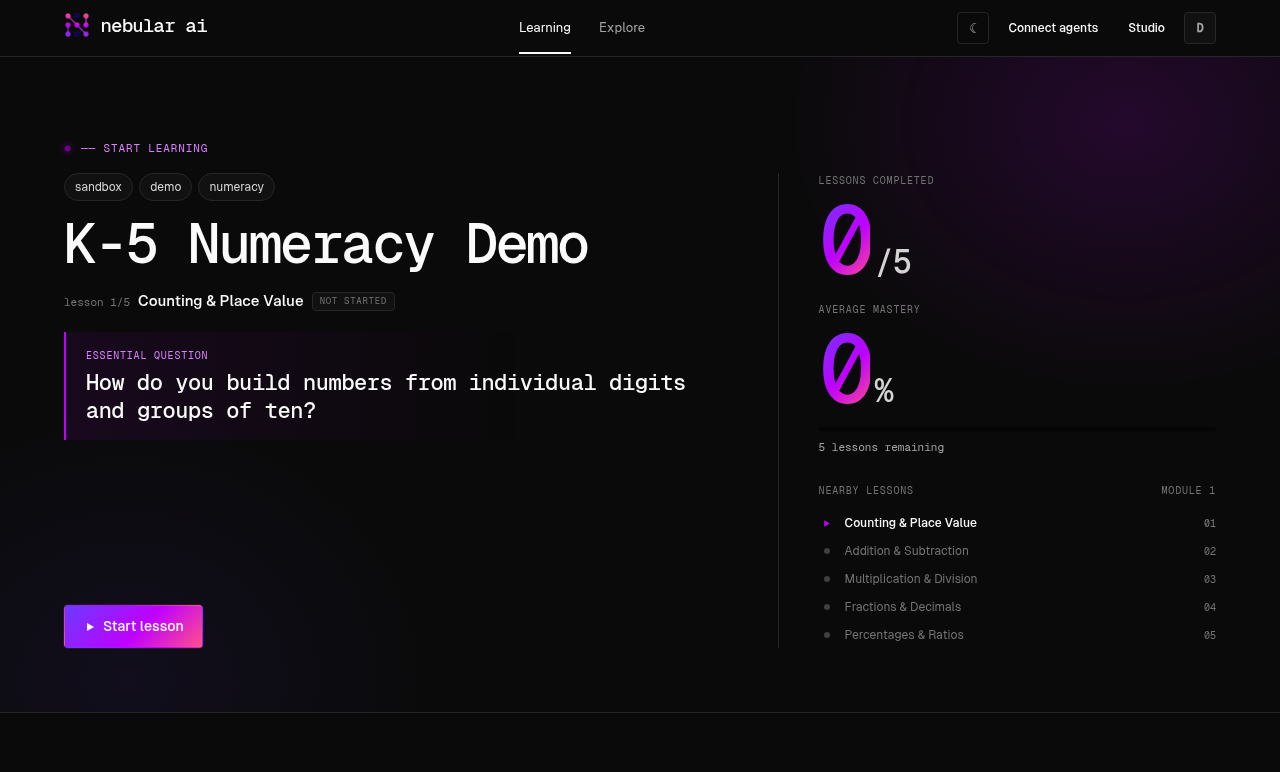
Switch hats. Open the learner experience, pick a lesson, and begin. The tutor adapts to what you know — and remembers it next time.
- 1Hit Start as learner, or open the published link and land on your
/dashboard. - 2Pick the recommended lesson and choose how you want to learn — Claude Code, Claude Desktop, or Claude web all work from the same enrolment.
- 3Answer as you go; mastery is tracked per skill and the next lesson unlocks when you’re ready.